corntab 에서 $RANDOM을 사용 하려고 하면 반응 하지 않는다.

기본 shell이 sh > dash이기 때문에 나타난 현상이다. 

sh와 bash의 차이는 아래와 같다.

더보기
더보기

What is sh?

sh (or the Shell Command Language) is a programming language described by the POSIX standard. It has many implementations (ksh88, Dash, ...). Bash can also be considered an implementation of sh (see below).Because sh is a specification, not an implementation, /bin/sh is a symlink (or a hard link) to an actual implementation on most POSIX systems.

What is Bash?

Bash started as an sh-compatible implementation (although it predates the POSIX standard by a few years), but as time passed it has acquired many extensions. Many of these extensions may change the behavior of valid POSIX shell scripts, so by itself Bash is not a valid POSIX shell. Rather, it is a dialect of the POSIX shell language.Bash supports a --posix switch, which makes it more POSIX-compliant. It also tries to mimic POSIX if invoked as sh.

sh = bash?

For a long time, /bin/sh used to point to /bin/bash on most GNU/Linux systems. As a result, it had almost become safe to ignore the difference between the two. But that started to change recently.
Some popular examples of systems where /bin/sh does not point to /bin/bash (and on some of which /bin/bash may not even exist) are:
  1. Modern Debian and Ubuntu systems, which symlink sh to dash by default;
  2. Busybox, which is usually run during the Linux system boot time as part of initramfs. It uses the ash shell implementation.
  3. BSD systems, and in general any non-Linux systems. OpenBSD uses pdksh, a descendant of the KornShell. FreeBSD's sh is a descendant of the original Unix Bourne shell. Solaris has its own sh which for a long time was not POSIX-compliant; a free implementation is available from the Heirloom project.
How can you find out what /bin/sh points to on your system?
The complication is that /bin/sh could be a symbolic link or a hard link. If it's a symbolic link, a portable way to resolve it is:
% file -h /bin/sh
/bin/sh: symbolic link to bash
If it's a hard link, try
% find -L /bin -samefile /bin/sh
/bin/sh
/bin/bash
In fact, the -L flag covers both symlinks and hardlinks, but the disadvantage of this method is that it is not portable — POSIX does not require find to support the -samefile option, although both GNU find and FreeBSD find support it.

cron 설정을 위해 아래와 같이 무작위 시간 대기후 실행을 하고자 할때 sh에서는 랜덤 변수가 정의되어 있지 않기 때문에 정시에 실행이 된다.

crontab
1 * * * * sleep $RANDOM && command.sh

이를 해결 하기 위해서는 sh에서도 확인 가능한 무작위 숫자를 만들어야 한다.

od -An -N4 -tu4 /dev/urandom: /dev/urandom에서 4바이트를 읽어 부호 없는 4바이트 정수로 해석하여 출력
$((...)): 산술 연산 수행
\% : crontab 내에서 % 는 줄바꿈을 의미하여, 연산자로 인식 하도록 "\" 포함한다.

위의 사항을 적용한 결과는 아래와 같다.

corntab for sh(dash)
1 * * * * sleep $(($(od -An -N4 -tu /dev/urandom) \% 59))m && commnad.sh


물론.... 이렇게 해도 된다.

corntab
1 * * * * /bin/bash sleep $(($RANDOM \% 59))m && commnad.sh


끝!

'IT' 카테고리의 다른 글

How to set up tailscale  (0) 2024.05.15
Configuring Linux DNS  (0) 2024.05.15
old snap revision delete  (0) 2024.05.15
xauth 설정 및 x11 접속  (0) 2024.05.15
Docker setting  (0) 2023.02.12

# add a apt, tailscale list

curl -fsSL https://pkgs.tailscale.com/stable/ubuntu/jammy.noarmor.gpg \
| sudo tee /usr/share/keyrings/tailscale-archive-keyring.gpg >/dev/null
curl -fsSL https://pkgs.tailscale.com/stable/ubuntu/jammy.tailscale-keyring.list \
| sudo tee /etc/apt/sources.list.d/tailscale.list

# then install tailsale

sudo apt-get update
sudo apt-get install tailscale

# then start tailscale

ex) tailscale up \
--operator=$USER \
--accept-routes \
--advertise-exit-node \ # tailscale을 설정한 현재 device로 network traffic을 전송 하도록 설정
--advertise-routes=10.0.0.0/24,10.0.2.0/24,172.18.0.0/24,169.254.69.254/32 \ # tailscale을 설정한 device의 네트워크 대역을 tailnet 그룹에 전파 설정
--hostname=$HOSTNAME
--------------------------------------------------
sudo tailscale up

The easiest, most secure way to use WireGuard.
USAGE
  tailscale [flags] <subcommand> [command flags]

For help on subcommands, add --help after: "tailscale status --help".
This CLI is still under active development. Commands and flags will
change in the future.

SUBCOMMANDS
  up          Connect to Tailscale, logging in if needed
  down        Disconnect from Tailscale
  set         Change specified preferences
  login       Log in to a Tailscale account
  logout      Disconnect from Tailscale and expire current node key
  switch      Switches to a different Tailscale account
  configure   [ALPHA] Configure the host to enable more Tailscale features
  netcheck    Print an analysis of local network conditions
  ip          Show Tailscale IP addresses
  status      Show state of tailscaled and its connections
  ping        Ping a host at the Tailscale layer, see how it routed
  nc          Connect to a port on a host, connected to stdin/stdout
  ssh         SSH to a Tailscale machine
  funnel      Serve content and local servers on the internet
  serve       Serve content and local servers on your tailnet
  version     Print Tailscale version
  web         Run a web server for controlling Tailscale
  file        Send or receive files
  bugreport   Print a shareable identifier to help diagnose issues
  cert        Get TLS certs
  lock        Manage tailnet lock
  licenses    Get open source license information
  exit-node   Show machines on your tailnet configured as exit nodes
  update      Update Tailscale to the latest/different version
  whois       Show the machine and user associated with a Tailscale IP (v4 or v6)
  drive       Share a directory with your tailnet
  completion  Shell tab-completion scripts

FLAGS
  --socket value
        path to tailscaled socket (default /var/run/tailscale/tailscaled.sock)

# tail lock 설정

# tail sign 설정

Add signing node
To add signing devices for your network, you can use the use the Tailscale CLI. Run the following command on the new device you'd like to add.

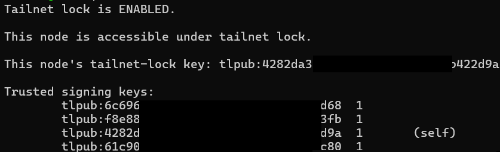
sudo tailscale lock status

< tailscale lock status >

Copy the tailnet lock key, which begins with tlpub:
Then, from an existing signing device, run the following command.

sudo tailscale lock add 

After which, the first device will be marked as a signing device.

sudo tailscale lock add <copied-key>


'IT' 카테고리의 다른 글

Crontab 에서 $RANDOM 활용을 위한 대안  (0) 2024.05.26
Configuring Linux DNS  (0) 2024.05.15
old snap revision delete  (0) 2024.05.15
xauth 설정 및 x11 접속  (0) 2024.05.15
Docker setting  (0) 2023.02.12
sudo ln -sf /run/systemd/resolve/stub-resolv.conf /etc/resolv.conf

sudo systemctl restart systemd-resolved
sudo systemctl restart NetworkManager
sudo systemctl restart tailscaled

'IT' 카테고리의 다른 글

Crontab 에서 $RANDOM 활용을 위한 대안  (0) 2024.05.26
How to set up tailscale  (0) 2024.05.15
old snap revision delete  (0) 2024.05.15
xauth 설정 및 x11 접속  (0) 2024.05.15
Docker setting  (0) 2023.02.12

쌓여 가는 snap revison을 찾아 일괄 삭제 하는 스크립트

#!/bin/bash

#Removes old revisions of snaps CLOSE ALL SNAPS BEFORE RUNNING THIS
set -eu
#LANG=en_US.UTF-8
snap list --all | awk '/disabled/{print $1, $3}' |
  while read snapname revision; do
    snap remove "$snapname" --revision="$revision"
  done

'IT' 카테고리의 다른 글

How to set up tailscale  (0) 2024.05.15
Configuring Linux DNS  (0) 2024.05.15
xauth 설정 및 x11 접속  (0) 2024.05.15
Docker setting  (0) 2023.02.12
Coredns (버전 업데이트 자동 대응)  (0) 2022.10.19

x11 접속시 auth 인증 오류 발생시 export에 등록 하여 오류 해결 필요

1. toch .Xauthority

2. chmod 600 .Xauthority

3. XAUTHORITY=$HOME/.Xauthority; export XAUTHORITY

4. ssh -X id@ip

'IT' 카테고리의 다른 글

Configuring Linux DNS  (0) 2024.05.15
old snap revision delete  (0) 2024.05.15
Docker setting  (0) 2023.02.12
Coredns (버전 업데이트 자동 대응)  (0) 2022.10.19
WSL to local ip  (0) 2022.10.17

□ Docker 사용자 계정 권한 부여

$ sudo usermod -aG docker $USER
$ sudo su - $USER
$ groups $USER

□ Dockerfile 여러개 두고 골라서 쓰는 방법

여러개의 Dockerfile을 두고 골라서 빌드 가능
예 )
docker build -t api-server:latest . -f dev.Dockerfile
docker build -t api-server:latest . -f stg.Dockerfile
docker build -t api-server:latest . -f prod.Dockerfile

docker build -t <도커파일명>:<태그> . -f <사용할 Dockerfile>

□ Docker run background

method 1 : Docker-compose
-=-=-=-=-=-=-=-=-=-=-
version: '3.4'
services:
  test-ubuntu:
    container_name: test-ubuntu
    image: ubuntu:20.04
    command: sleep infinity
-=-=-=-=-=-=-=-=-=-=-

method2 : Dockerfile
-=-=-=-=-=-=-=-=-=-=-
FROM ubuntu:20.04
CMD tail -f /dev/null
-=-=-=-=-=-=-=-=-=-=-

'IT' 카테고리의 다른 글

old snap revision delete  (0) 2024.05.15
xauth 설정 및 x11 접속  (0) 2024.05.15
Coredns (버전 업데이트 자동 대응)  (0) 2022.10.19
WSL to local ip  (0) 2022.10.17
영상 다운로드(ffmpeg)  (0) 2022.10.17

□ Coredns 버전이 업데이트 되면 자동으로 최신 버전으로 대체

 ○ 기존 글 참고 :  https://positively.tistory.com/4

#!/usr/bin/env sh
ALPINE_VER=3.16
## 알파인 repository 버전 업데이트
sed -i "s/3.11/$ALPINE_VER/g" /etc/apk/repositories
## 알파인 버전 일괄 변경
sed -i "s/http/https/g" /etc/apk/repositories
## https 적용

if [ -z "$(apk info | grep curl)" ];
## curl 확인, 없으면....
then
   apk add -X https://dl-cdn.alpinelinux.org/alpine/${ALPINE_VER}/main -u alpine-keys --allow-untrusted &&
   apk add -X https://dl-cdn.alpinelinux.org/alpine/${ALPINE_VER}/community -u alpine-keys --allow-untrusted &&
   ## 3.16으로 일시에 올리면 신뢰성 요구 하길래... 신뢰성 무시
   apk add curl
   ## curl 설치
fi

apk upgrade -y
## apk 일괄 업데이트

COREDNS_VER=$(curl -s -I https://github.com/coredns/coredns/releases/latest | grep 'location: ' | cut -d 'v' -f2 | tr -d '\r')
## coredns 최신 버전 확인하여 구동시 마다 최신버전 적용
OS=$(echo $(uname) | tr '[:upper:]' '[:lower:]')
## os 확인 -> 대문자는 일괄 소문자로 변경

arch(){
  case $(uname -m) in
  aarch64)
    echo arm64
    ;;
  x86_64)
    echo amd64
    ;;
  *)
    ehco $(uname -m)
    ;;
 esac
}
## 아키텍쳐 확인
COREDNS_FILE=coredns_${COREDNS_VER}_${OS}_$(arch).tgz
## 다운로드 받아질 바이너리 파일명 변수 선언
COREDNS_URL=https://github.com/coredns/coredns/releases/download/v${COREDNS_VER}/${COREDNS_FILE}
## 다운로드 파일 url 변수 선언


if [ -e /app/${COREDNS_FILE} ];
then
    nohup /app/coredns -dns.port=53 >/dev/null 2>&1 &
else
    /usr/bin/wget -P /app/ ${COREDNS_URL} &&
    /bin/tar -zxvf /app/${COREDNS_FILE} -C /app &&
    echo -e '. \n{\n loop \n forward . /etc/resolv.conf \n}' >>/app/Corefile &&
    nohup /app/coredns -dns.port=53 >/dev/null 2>&1 &
fi

'IT' 카테고리의 다른 글

xauth 설정 및 x11 접속  (0) 2024.05.15
Docker setting  (0) 2023.02.12
WSL to local ip  (0) 2022.10.17
영상 다운로드(ffmpeg)  (0) 2022.10.17
Alpine Linux using the korean input method  (0) 2022.10.17

□ WSL의 서비스 ip를 외부로 출력 하기 위한 스크립트

 ○ WSL 기동 시 마다 ip가 매번 변하기 때문에 윈도우 방화벽에서 접근을 매번 풀어 주기가 귀찮았는데, 선구자 들의 발견으로 아래와 같은 소스를 공유 합니다.

powershell

$remoteport = bash.exe -c "ifconfig | grep -o -P '(?<=inet).*(?=172.21).*(?=netmask)'"
$found = $remoteport -match '\d{1,3}\.\d{1,3}\.\d{1,3}\.\d{1,3}';

if( $found ){
  $remoteport = $matches[0];
} else{
  echo "The Script Exited, the ip address of WSL 2 cannot be found";
  exit;
}

#[Ports]

#All the ports you want to forward separated by coma
$ports=@(80,443,8080);


#[Static ip]
#You can change the addr to your ip config to listen to a specific address
$addr='0.0.0.0';
$ports_a = $ports -join ",";


#Remove Firewall Exception Rules
iex "Remove-NetFireWallRule -DisplayName 'WSL 2 Firewall Unlock' ";

#adding Exception Rules for inbound and outbound Rules
iex "New-NetFireWallRule -DisplayName 'WSL 2 Firewall Unlock' -Direction Outbound -LocalPort $ports_a -Action Allow -Protocol TCP";
iex "New-NetFireWallRule -DisplayName 'WSL 2 Firewall Unlock' -Direction Inbound -LocalPort $ports_a -Action Allow -Protocol TCP";

for( $i = 0; $i -lt $ports.length; $i++ ){
  $port = $ports[$i];
  iex "netsh interface portproxy delete v4tov4 listenport=$port listenaddress=$addr";
  iex "netsh interface portproxy add v4tov4 listenport=$port listenaddress=$addr connectport=$port connectaddress=$remoteport";
}

출처 1: https://gist.github.com/xmeng1/aae4b223e9ccc089911ee764928f5486
출처 2: https://github.com/microsoft/WSL/issues/4150#issuecomment-504209723 

.끝  .


'IT' 카테고리의 다른 글

Docker setting  (0) 2023.02.12
Coredns (버전 업데이트 자동 대응)  (0) 2022.10.19
영상 다운로드(ffmpeg)  (0) 2022.10.17
Alpine Linux using the korean input method  (0) 2022.10.17
Linux user password encrypted change sh script  (0) 2022.10.07

□ m3u8 형식으로 스트리밍 되는 영상 다운로드

ffmpeg -i "your video linnk.m3u8" -bsf:a aac_adtstoasc -c copy "your local location.mp4"

-bsf:a aac_adtstoasc <오디오스트림에 aac사용>

.  끝.

□ Alpine Linux

 ○ 알파인 리눅스는 경량화된 리눅스 이다. 최소 구동 용량이 8MB에 불과 하여 Docker 혹은 라즈베리파이 등 용량적 제한이 있는 플랫폼에 활용 되고 있다.

□ Alpine Linux 한글 입력의 제한...

 ○ 경량화된 Alpine Linux는 초기구동 시 마.무.것.도 없다. 입력과 출력은 기본설정이 영어로 되어 있으며, 한글을 출력시 읽을 수 없는 문자로 출력 된다.

□ Alpine Linux 한글 폰트 보완(기존 글 참고)

 ○ 기존에 작성된 firefox/linuxserver Docker이미지에서 한글 폰트를 구동시 마다 자동으로 다운로드 받도록 스크립트를 안내 한바 있다. 1차원적으로 코드를 작성해서, 폰트의 존재 여부와 관계 없이 구동시 마다 실행 되고 있어서 한글 폰트 설치 및 한글 입력을 보완 하여 스크립트로 안내 하고자 한다.

□ Alpine Linux 한글 입력 설정

sudo nano /etc/init.d/auto_hangul_font

#!/usr/bin/env sh

ALPINE_VER=3.16
# 한글 입력은 현재(22.10.17) alpine linux comunity 3.15버전에서는 사라진 상태여서 repository 버전 업 필요하여 변수 선언
sed -i  "s/3.15/$ALPINE_VER/g" /etc/apk/repositories
# firefox/linuxserver 의 기본 repository 버전을 3.16으로 갱신
FONT_PATH=/usr/share/fonts/Nanum
# 한글 폰트 설치를 위한 경로 변수 선언

if [ -z "$(apk info | grep curl)" ];
then 
  apk add curl 
  # 폰트 다운을 위한 curl 설치
fi

if [ ! -d $FONT_PATH ];
then 
   apk update && apk add font-noto-cjk
   # 일본어, 중국어 등 아시아권 문자 출력을 위한 폰트 설치
   ehco "empty"
   # 설정한 폰트 경로가 없다면... if
   /bin/mkdir $FONT_PATH &&
   /usr/bin/curl -o $FONT_PATH/Nanum-coding.zip -L https://fonts.google.com/download?family=Nanum%20Gothic%20Coding &&
   /usr/bin/curl -o $FONT_PATH/Nanum.zip -L https://fonts.google.com/download?family=Nanum%20Gothic &&
   /usr/bin/unzip -o $FONT_PATH/Nanum.zip -d $FONT_PATH &&
   /usr/bin/unzip -o $FONT_PATH/Nanum-coding.zip $FONT_PATH &&
   /bin/rm $FONT_PATH/Nanum-coding.zip && /bin/rm $FONT_PATH/Nanum.zip
   # 폰트를 내려 받고, 폰트를 압축 풀고, 완료되면 zip 파일 삭제
else
   ehco "not empty"
   # 폰트 경로가 존재 하면 실행 안함
 fi
 
 if [ -z "$(apk info | grep ibus-hangul)" ];
 then
   apk update %% apk add ibus ibus-hangul
   # 표준 입력 장치 및 표준 입력 - 한글 설치
 fi

□ 한글 입력 환경 설정

1. ibus-setup #shell 에 ibus-setup 설정을 위해 명령 실행

2. 새로 열린창 상단 매뉴중 Input Method 선택

3. english 삭제

4. add 선택 후 korean -> Hangul 선택

5. preferences 선택 후 원하는 한글 전환 버튼 설정
  * 나의 경우 키보드의 한글 버튼 키매핑이 되지 않아 ctl+space 로 설정 사용중

□ 한글 입력 사항 자동 실행

 ○ ibus-daemon을 부팅시 마다 자동 실행
 -d : demonize
 -x : xim
 -r : repace
 -v: vervose

nano $HOME/.bashrc

#!/usr/bin/env sh

ibus-daemon -xdrv

이제 위대한 한글을 사용해 보자!!!

### firefox/linuxserver Docker 이미지에서는 로그인 마다 xterm 쉘을 한번 실행해 주어야 한글 입력이 되고 있다....

## .bashrc 는 로그인 마다 실행 되는 거라서 그런듯...

+ Recent posts